Browse backups and download files
Browse the content of your Proxmox backups from the Cloud-PBS dashboard and download a file or a folder, without Proxmox VE and without a full restore.
Last updated: October 8, 2026
NOTE
Progressive rollout. This feature is being enabled server by server. The Browse button only appears once browsing is available for the server hosting your datastore. If you do not see it yet, your server has not been enabled so far: the rollout is ongoing.
Introduction
Need a single file from a backup, such as a configuration file deleted by mistake or an overwritten document? You can now browse the content of your backups and download files directly from the Cloud-PBS dashboard, without Proxmox VE and without a full restore.
It works for every backup group in your datastore: virtual machines (VM), containers (CT) and hosts.
If you prefer to go through the Proxmox VE interface, the usual method is still available: see How to restore a single file on PVE.
Browse a backup
- Open your datastore and go to the Restore tab.
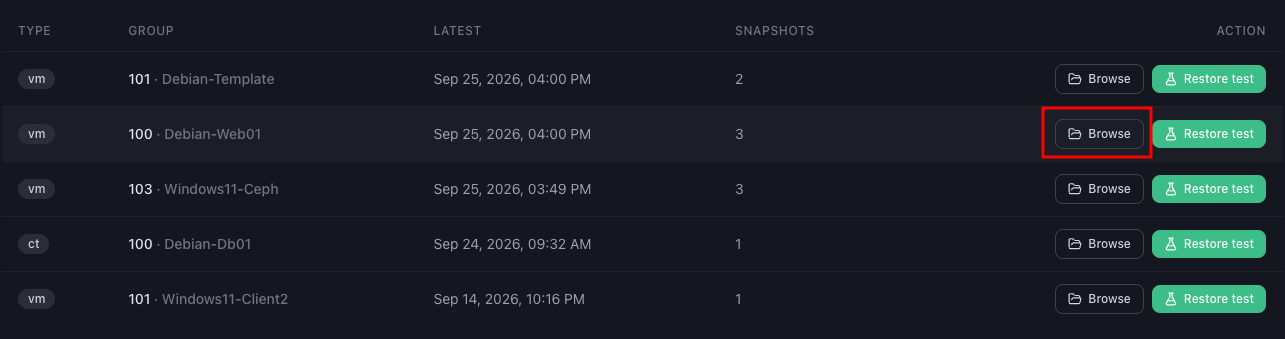
- In the Backups sub-tab, find the backup group (VM, CT or host) you are interested in and click Browse.
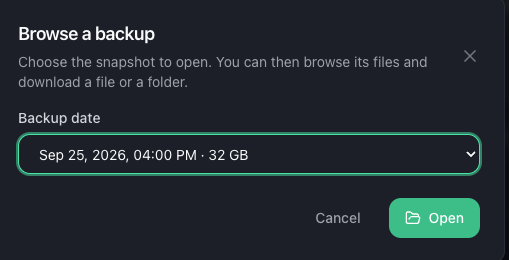
- In the dialog that opens, pick the snapshot (backup date) to browse.
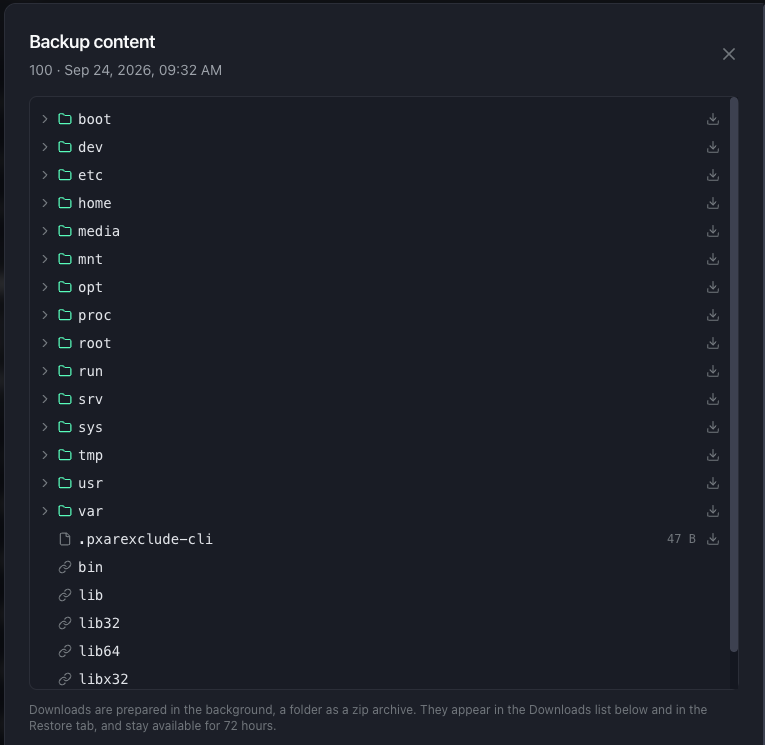
- The backup tree opens: folders and files. It loads as you go: click a folder to show its content.
Container (CT) backup
For a container, the tree opens instantly and takes you straight to the file system.
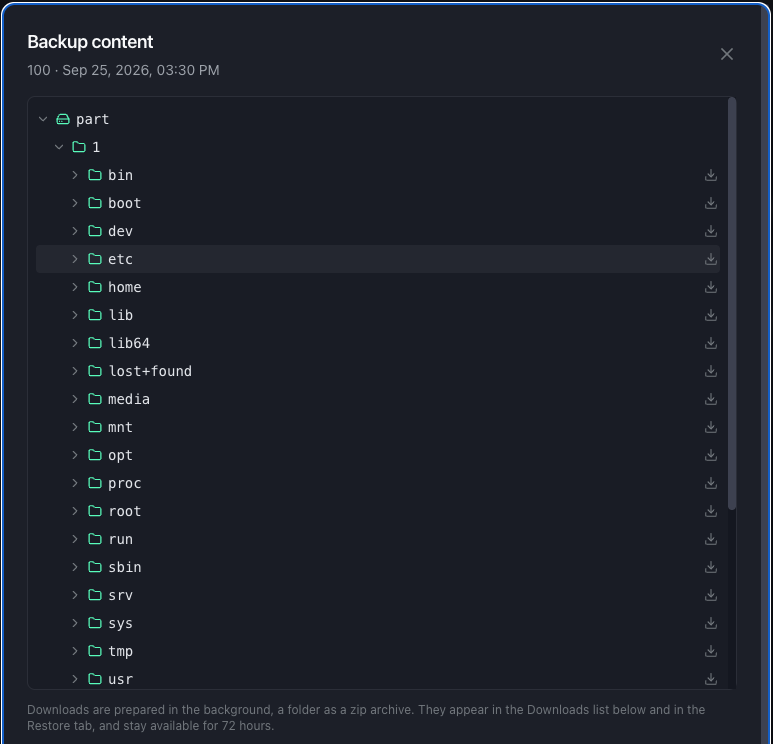
Virtual machine (VM) backup
For a VM, the tree follows the layout of the machine: first the disks, then the partitions of each disk, then the file system. If the VM has several disks (for example a Windows VM with its EFI and TPM disks), each disk is shown separately.
The first opening of a VM backup can take a few seconds.
Download a file or a folder
On each row of the tree, click the download icon:
- A file is downloaded as is.
- A folder is downloaded as a zip archive with all its content.
Whole disks, partitions and whole archives cannot be downloaded. To recover an entire machine, use a full restore.
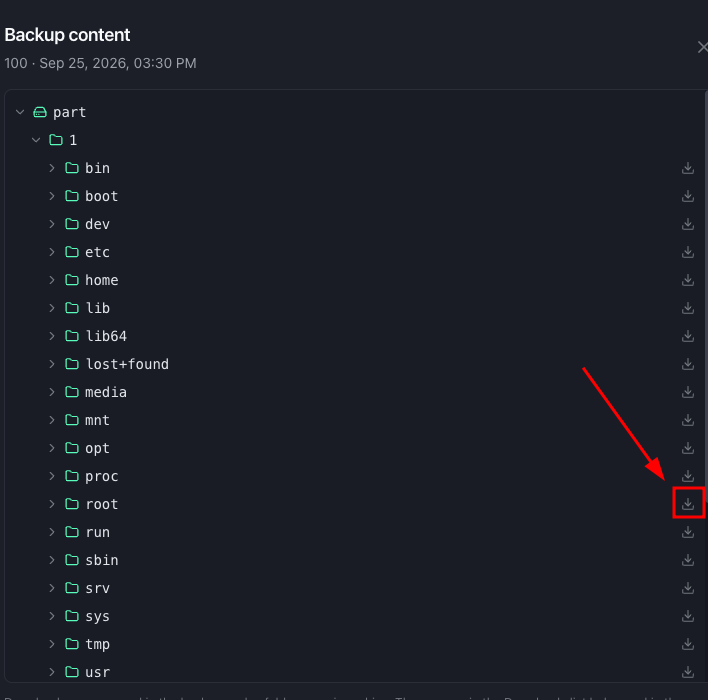
The download is prepared in the background: you can keep browsing in the meantime.
Follow your downloads
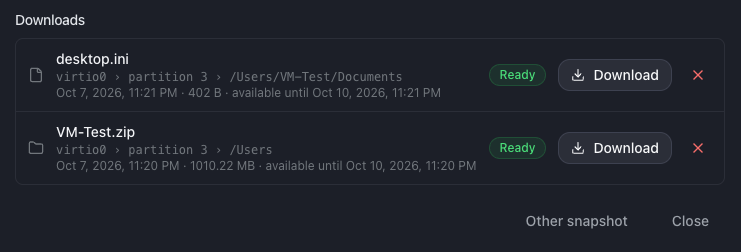
Your downloads appear in the Downloads list, shown under the backups table and in the browse dialog. Each download goes through one of these states:
- Preparing: the file or archive is being prepared. If you already have the maximum number of downloads being prepared, extra ones wait in queue and are shown as waiting.
- Ready: click it to download the file. A ready download stays available for 72 hours.
- Failed: the preparation did not succeed. You can delete the row and start the download again.
- Expired: the 72 hours have passed and the file is no longer available. Start the download again from the tree if needed.
To delete a download from the list, click the red cross.
Files are delivered through time-limited links from object storage.
Client-side encrypted backups
If your backups are encrypted client-side (see Enable backup encryption), Cloud-PBS needs the encryption key to read their content.
- In the datastore Restore tab, find the PBS encryption key card.
- Save the PBS encryption key used by this datastore there. It is stored encrypted.
- You can then browse your encrypted backups like any other.
Without the key, an encrypted backup cannot be browsed.
File names of client-side encrypted backups are never cached by Cloud-PBS.
Limits
- At most 2 downloads prepared at the same time per user. Extra ones wait in queue and are shown as waiting.
- 1 GB maximum per download for now. For a larger folder, download its sub-folders separately.
These limits may be raised later.
Good to know
- I do not see the Browse button. The feature is being rolled out server by server: the button appears as soon as browsing is available for your datastore’s server.
- Opening a VM backup takes a few seconds. This is expected on the first opening.
- I cannot download a whole disk. Disks, partitions and whole archives cannot be downloaded from the browser. Use a full restore instead.
- My download has expired. A ready download stays available for 72 hours. After that, start it again from the tree.