Account security: password and two-factor authentication
Change your Cloud-PBS account password and turn on two-factor authentication (2FA) with an authenticator app and backup codes.
Last updated: July 22, 2026
Change your password
Go to Settings > Security. Enter your current password and a new one (at least 8 characters), then save. This is the password for your Cloud-PBS account (the dashboard login), not a Proxmox password or a datastore token.
Two-factor authentication (2FA)
Two-factor authentication adds a second step at login: after your password, you enter a 6-digit code from an authenticator app. It protects your account even if your password leaks.
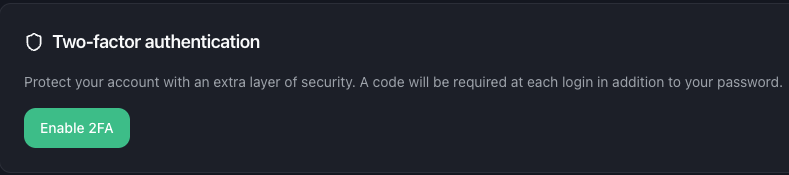
Enable 2FA
- In Settings > Security, click Enable two-factor authentication.
- Scan the QR code with an authenticator app (Google Authenticator, Authy, 1Password, and similar), or type the shown secret key manually.
- Enter the 6-digit code from the app to confirm.
- Cloud-PBS then shows your backup codes. Save them somewhere safe: each one lets you sign in once if you lose access to your app.
Once confirmed, every future login asks for a code from your app.
Sign in with 2FA
At login, after your password, enter the current 6-digit code from your authenticator app. If you don’t have your phone, use one of your backup codes instead (each works once).
Disable 2FA
In Settings > Security, turn off two-factor authentication. You are asked for your password to confirm.
Keep your backup codes safe. If you lose both your authenticator app and your backup codes, contact support to recover access to your account.