Notification webhooks: Discord, Slack, Teams, Mattermost, Matrix
Send Cloud-PBS alerts to your team chat. Configure Discord, Slack, Teams, Mattermost or Matrix webhooks, then choose which events each datastore reports.
Last updated: July 22, 2026
How Cloud-PBS notifications work
Cloud-PBS can alert you two ways: by email and through chat webhooks to Discord, Slack, Microsoft Teams, Mattermost or Matrix. You set up the channels once for your organization, then choose per datastore which events are worth a notification. A channel you configure is shared by every datastore, so you only enter each webhook once.
Configure a channel
From the dashboard, open Notifications and go to the Settings tab.
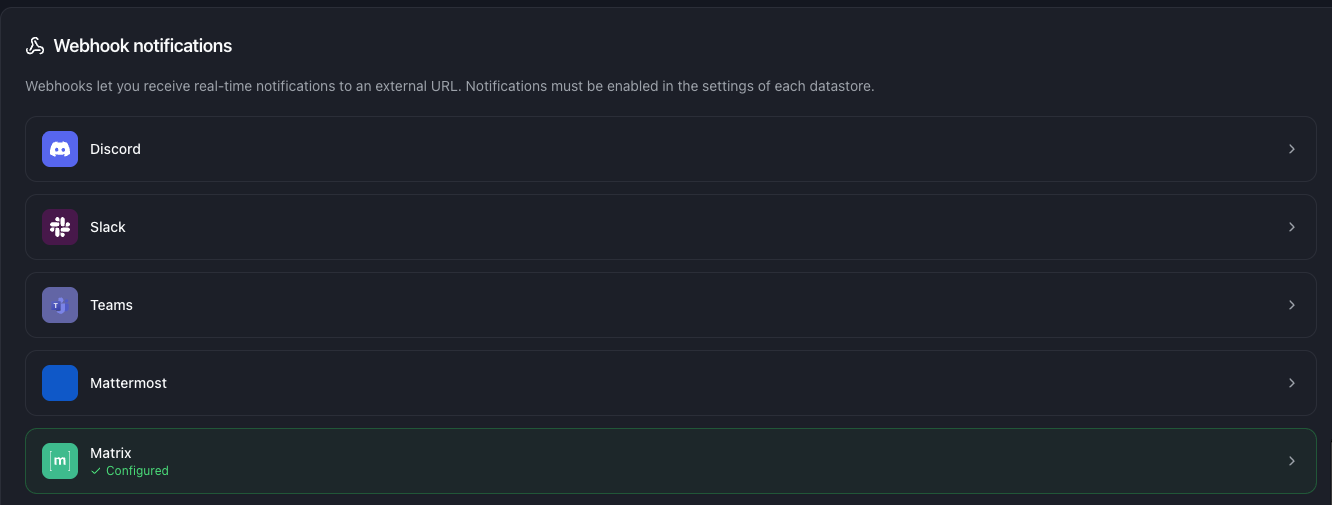
Discord, Slack, Teams, Mattermost
These four services work the same way: paste an incoming webhook URL and save.
- Discord: Server Settings > Integrations > Webhooks > New Webhook, pick the channel, then Copy Webhook URL.
- Slack: create a Slack app with the Incoming Webhooks feature enabled, add it to your workspace, and copy the webhook URL for the target channel.
- Microsoft Teams: on the target channel, add an Incoming Webhook connector, name it, and copy the URL.
- Mattermost: Integrations > Incoming Webhooks > Add, choose the channel, and copy the URL.
Paste the URL in the matching field, click Test to send a sample message, then Save.
Matrix
Matrix needs three values instead of a single URL:
- Homeserver URL: the base URL of your Matrix homeserver (for example
https://matrix.example.com). - Room ID: the internal room identifier, in the form
!abcd1234:matrix.example.com. - Access token: the token of the bot or user that will post the messages.
Invite that bot/user to the room first, then fill the three fields, Test, and Save.
Use a dedicated bot account for Matrix rather than a personal one, so you can revoke its access token without affecting anyone else.
Choose what each datastore reports
Channels define where notifications go; each datastore defines what it sends. Open a datastore and go to its Notifications tab, where you can toggle each event type:
- Backup completed, verification, garbage collection, prune, synchronization
- Storage usage (with warning / critical thresholds, in % or GB for Pay-as-you-go)
- Missing backup (with a delay threshold in hours or days)
- Restore test finished
- Daily digest
Enable only what matters for that datastore. A production datastore might report missing backups and storage alerts; a lab one might stay quiet.
Email notifications
In the same Notifications > Settings tab you can set the notification email address and turn email alerts on or off. Email and webhooks are independent: you can use either, both, or neither.
Review your setup
The Webhooks page gives a read-only summary of the notification settings across your datastores (which alert types and thresholds are active on each), so you can check your coverage at a glance.
Remove a channel
To stop sending to a service, clear its webhook (or delete it) from Notifications > Settings and save. Datastores that referenced it simply stop notifying on that channel.