Browse your Proxmox backups and download files
Browse your Proxmox VM, container and host backups from the Cloud-PBS dashboard and download a single file or a folder, without Proxmox VE or a full restore.
Most restores are small. Nobody lost the whole server: someone lost one file. A spreadsheet deleted by mistake on Tuesday. An nginx.conf overwritten by a package update, and the old version is the one that worked. A user who needs the contract they had last week, before they edited it. Each time, the backup is there and the data is in it. The question is how fast you can get that one file out.
Until now, the answer went through Proxmox VE: open the storage, find the backup, use the file restore window, or restore the whole machine somewhere to pick out what you need. That works, but it assumes you have access to the right Proxmox VE host at that moment, and it is a lot of steps for a single file.
From today, you can do it from the Cloud-PBS dashboard.
Browse a backup like a folder
Open a datastore in the dashboard and go to the Restore tab. Every backup group, whether a virtual machine, a container or a host, now has a Browse button.
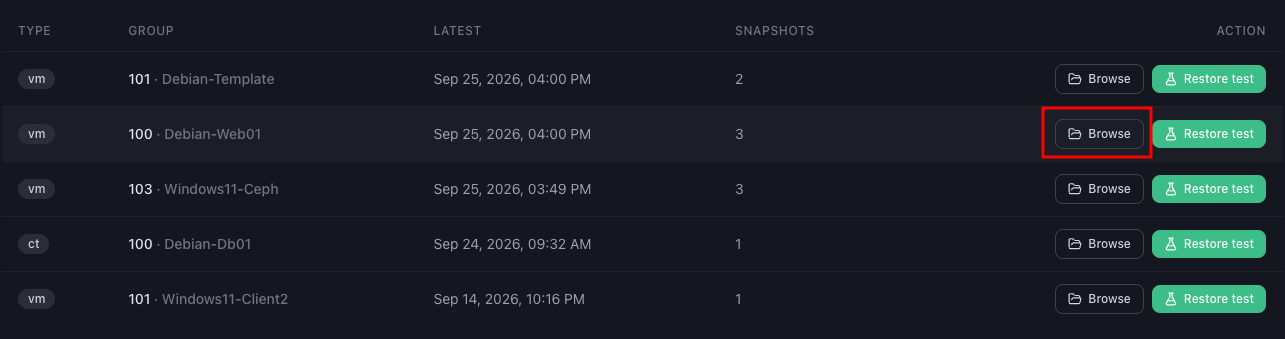
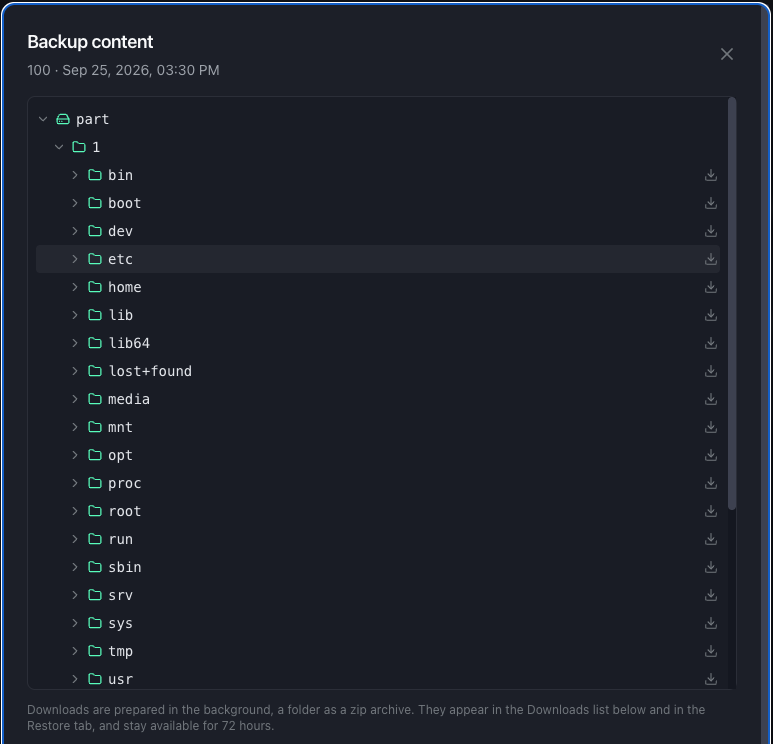
Pick a snapshot, which is simply the date of the backup you want, and the content opens as a tree of folders and files. You expand folders as you go, the same way you would in a file manager.
This works for containers and for virtual machines, including VMs with several disks and partitions, Linux and Windows alike. For a VM, the tree follows the machine’s layout: disks first, then partitions, then the file system. The first time you open a VM backup, it can take a few seconds.
Download a file or a whole folder
Every line in the tree has a download icon. A file is downloaded as is. A folder is downloaded as a zip archive with everything it contains.
Downloads are prepared in the background, so you can keep browsing while they get ready. They appear in a Downloads list, and once a download is ready it stays available for 72 hours. That is enough time to come back to it later, or to send the file on to whoever asked for it.
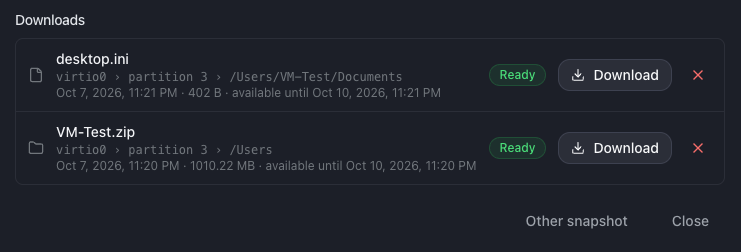
There is no Proxmox VE involved and no full restore of the VM or container. You do not touch production, you do not need spare capacity to restore a machine, and you do not need to be on the network where your hypervisors live.
What it changes day to day
The accidental deletion. A user deletes a folder on a file server VM. You open the backup from the night before, find the folder, download it as a zip and hand it back. No restore job, no temporary VM.
The configuration that broke after an update. A container stops working after an upgrade overwrote a config file. You browse yesterday’s snapshot, download the previous version of the file and compare it with the current one before deciding what to keep.
The document from last week. Someone needs a file as it was a few days ago. You choose that day’s snapshot, download the file, and the request is closed.
The MSP answering a customer. A customer asks for one file back. Your team can handle it from the dashboard, from anywhere, without connecting to the customer’s Proxmox VE. A request that used to mean a session on their infrastructure becomes a few clicks and a download.
Encrypted backups
If your backups are encrypted on the client side, Cloud-PBS cannot read them without the key. To browse them, save the datastore’s PBS encryption key in the dashboard, in the Restore tab. The key is stored encrypted. Without it, encrypted backups cannot be browsed.
File names inside client-side encrypted backups are never cached by Cloud-PBS.
Current limits and rollout
A few limits apply for now:
- up to 2 downloads prepared at the same time per user; the next ones wait their turn;
- 1 GB maximum per download for now. For a larger folder, download its sub-folders separately.
These limits may be raised later.
The feature is being enabled server by server. The Browse button appears on a datastore as soon as it is available for the server that hosts it. If you do not see it yet, your server has not been enabled so far, and it will come.
Alongside the other ways to restore
Browsing in the dashboard does not replace the other options; it covers the most common case faster. To restore a single file from Proxmox VE, or to bring back a full disk or a whole machine, the existing methods are still there. And restore testing, where Cloud-PBS actually boots a backup to prove it restores, keeps answering a different question: not “can I get this file back”, but “would this machine come back if I needed it”.
Where to find it
Open a datastore in the Cloud-PBS dashboard, go to the Restore tab and click Browse on the backup group you need. The step-by-step guide, including encrypted backups and the downloads list, is in the documentation: Browse backups and download files.