How to enable encryption from your Proxmox VE server
Last updated: March 9, 2025
Introduction
On recent PVE versions, you can enable encryption on your Cloud-pbs storage.
This means that each backup chunk processed on your server is encrypted on your serveur, sent to the Cloud-pbs instance, then saved on the Cloud-pbs storage.
During the encryption setup process the wizard will asks you to save your key somewhere safe. This is very important, no one should have an access to it !
You can save it to a password manager or write it down to a paper and keep it in a safe box.
PVE Configuration
Once your storage is configured on your Proxmox VE server :
-
On the left side select Datacenter ⇒ storage ⇒ cloud-pbs.com
-
Select Edit button
On the Edit box :
- Select Encryption ⇒ Auto-generate a client encryption key ⇒ OK
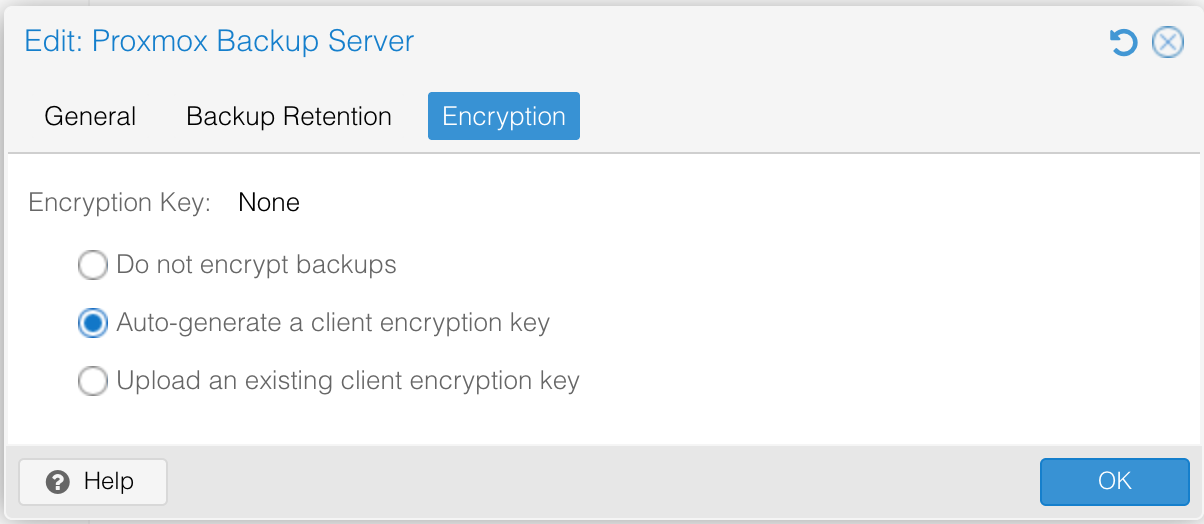
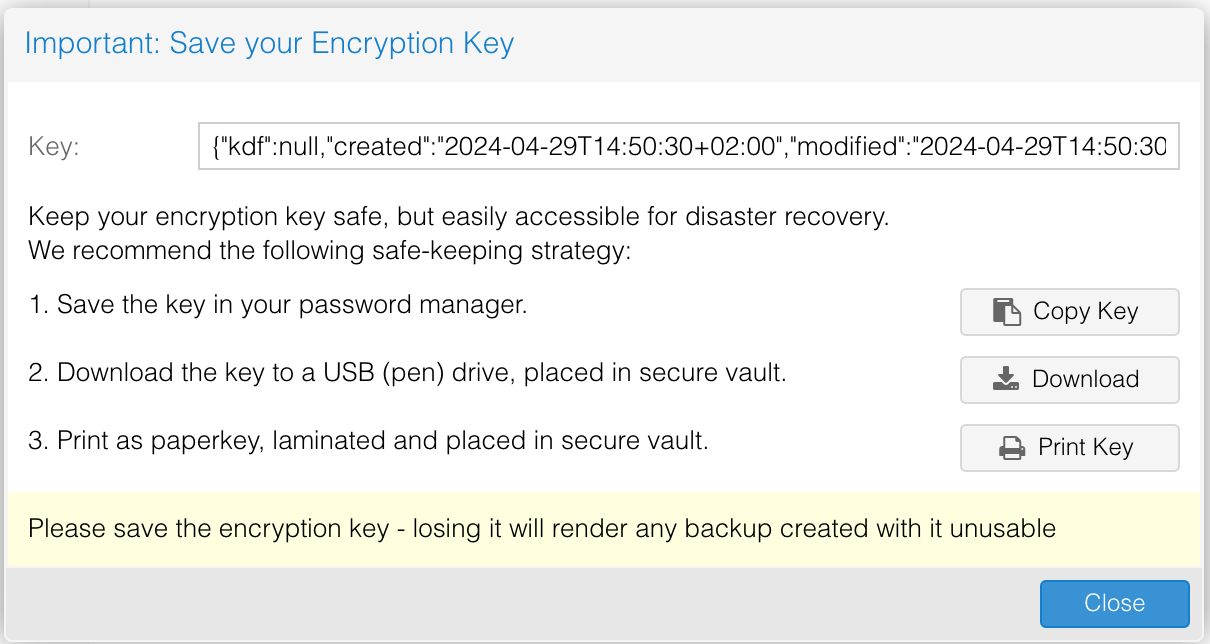
The next form show you how to deal with the generated key.
-
Save the key in your password manager : At Cloud-pbs, we think that this is the easiest solution. Select the Copy Key button, paste it in your password manager and voila.
-
Download the key to a USB key : This is a way to store offline your key, on a device. Copy the downloaded file to a usb hard disk drive, and place this drive into a safe box.
-
Print as paperkey : The more secure but painfull solution the day you’ll want to use it to restore.
Done, your backups will be encrypted but do not forget : you will need the encryption key to restore your backups.