Cloud-PBS Dashboard
Last updated: August 28, 2025
Cloud-PBS Dashboard discovery
The Cloud-PBS dashboard is available at this url : https://dashboard.cloud-pbs.com
This is the entry point to start monitoring, verifying and checking your backups. It’s an intuitive web interface to let you manage your subscriptions, payment methods, billing address etc.
Please note that the dashboard is under development. New features are added periodically. To make it better, we have a feedback tool available here: https://feedback.cloud-pbs.com Feel free to leave a comment, vote and report any bugs about the documentation or the dashboard itself.
Homepage
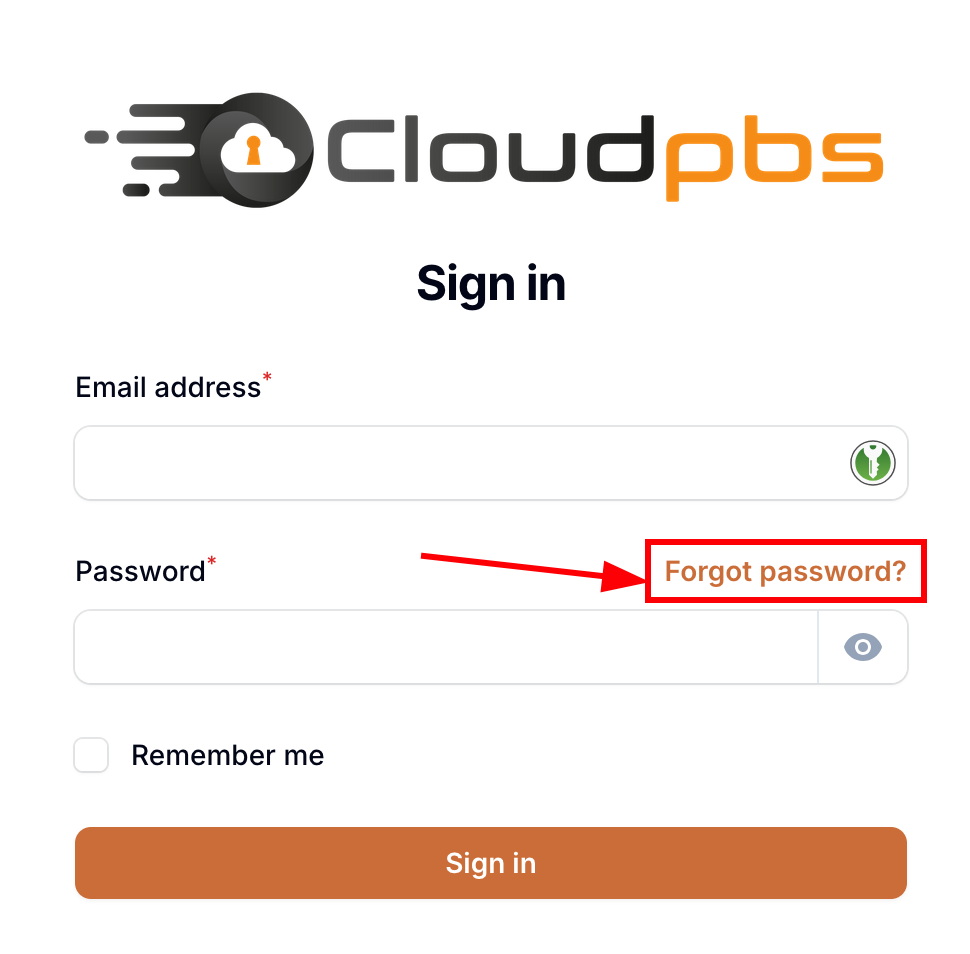
Before starting to use the dashboard, you need to request for a new password here
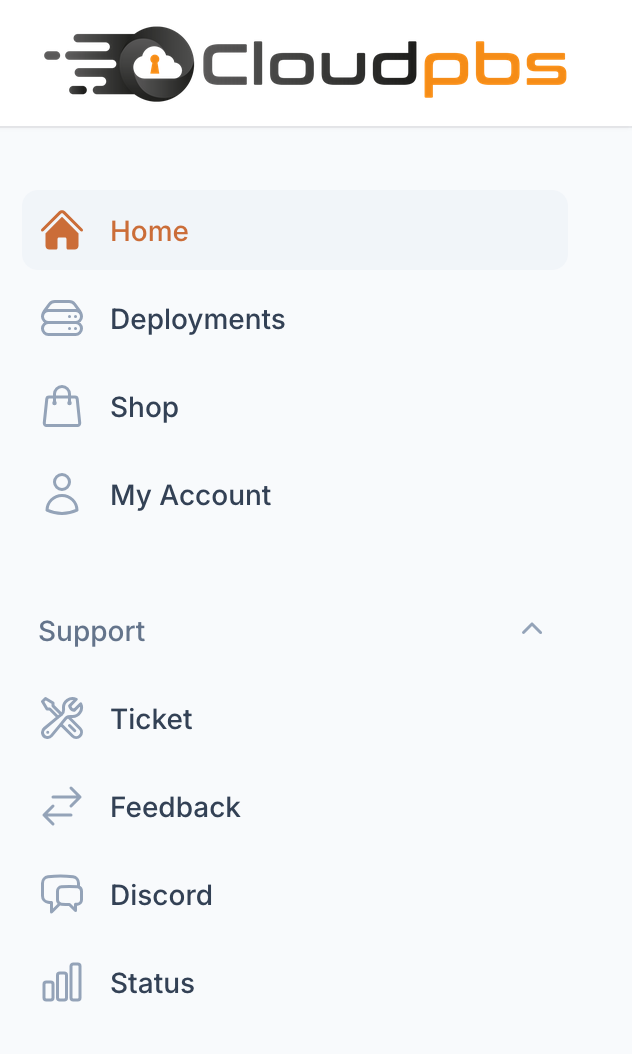
Left menu
-
Home : Always returns to the home page
-
Deployments : Let you check your Cloud-PBS orders / deployments
-
Shop : Subscribe to a new Cloud-PBS product
-
My Account : Configure your email notifications, billing informations
-
Ticket : Ask a question to the Cloud-PBS support team
-
Feedback : A bug, missing feature, or a simple comment ? Let us know !
-
Discord : Want to chat with the support ? Here is the link !
-
Status : A simple web interface in case of emergency. Let you know if something is happening on your instance.
Deployments
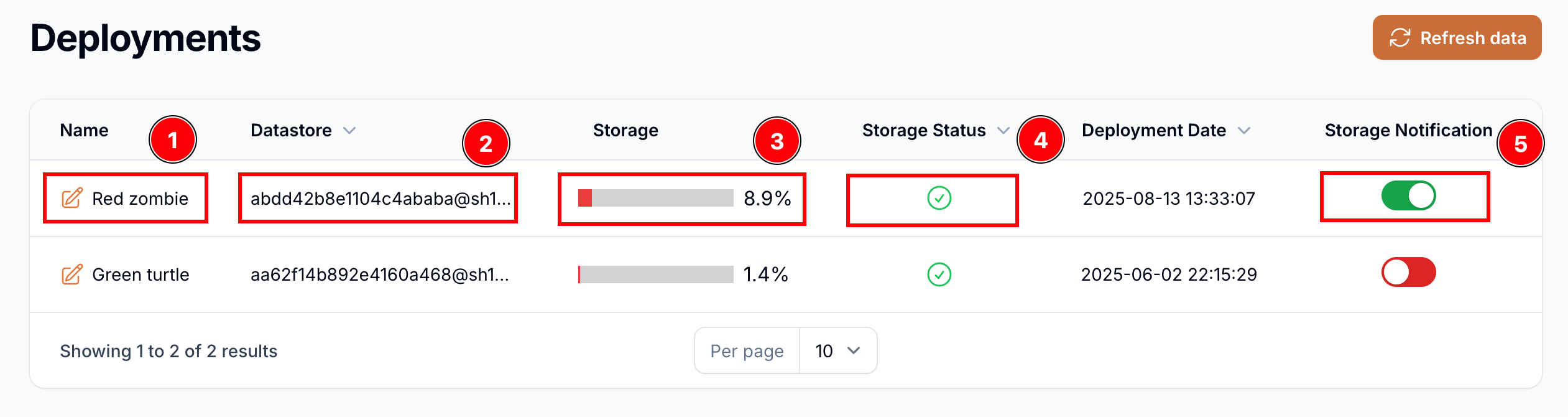
The deployments page is a table displaying your deployment informations.
-
Custom name: using the pen you can set a custom name for your deployment. Useful for MSP’s and any customers running multiple instances.
-
Datastore name : unique identifier for your datastore. Selecting this item will send you deeper in your deployement to check backups, tasks history etc.
-
Storage usage : usefull to instantly know how much storage is currently in use.
-
Storage status : small icon to quickly understand how’s the storage status :
-
Green : OK (Storage under 80% of use)
-
Red : Warning (Storage above 80% of use)
-
-
Storage notification : enable or disable monitoring notifications. If you storage grows up to 80%, a daily email will be sent to the notification email address configured in My Account.
Details
Select your datastore name from the Deployments interface to open the deployment details interface.
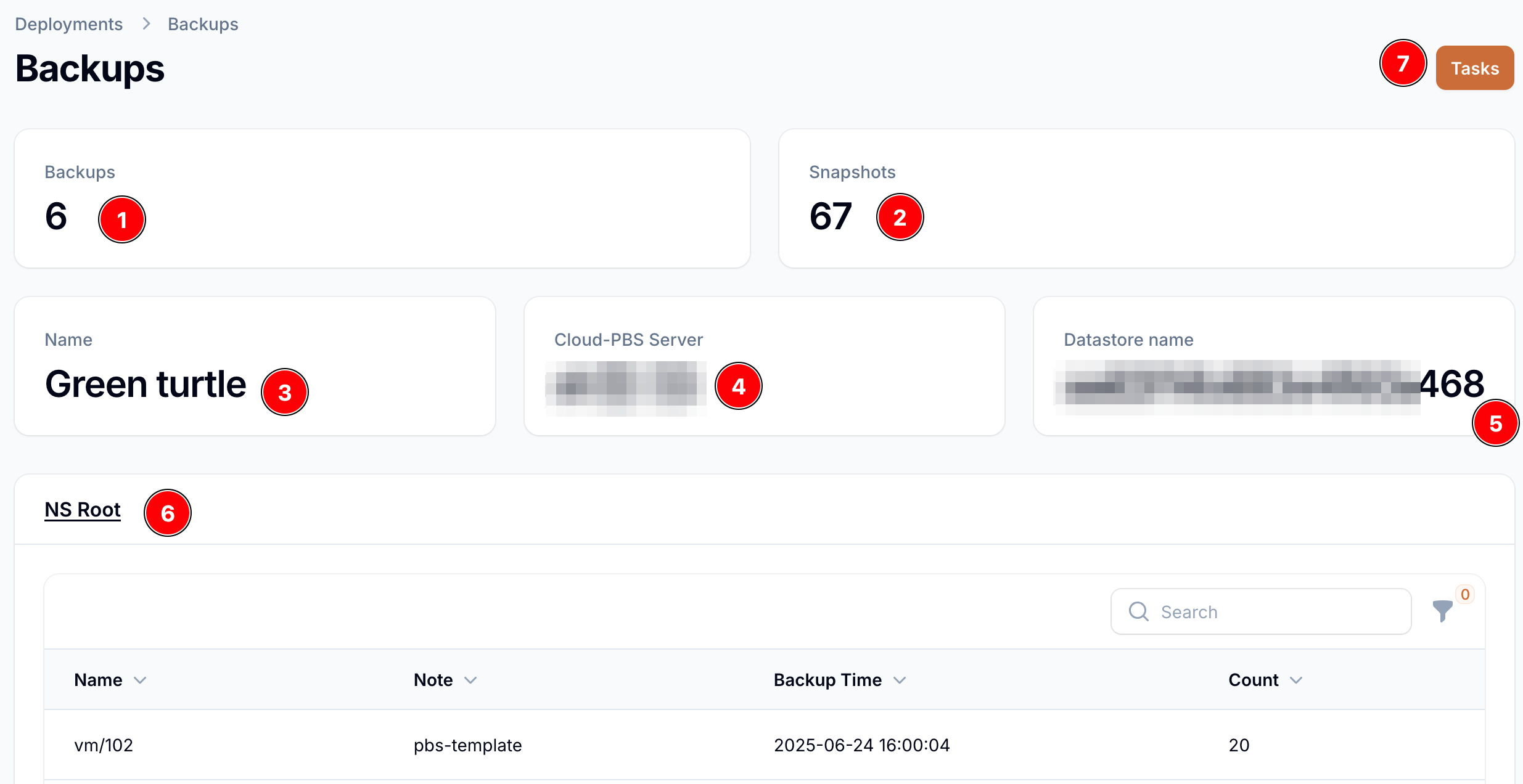
This page display some usefull informations about your datastore.
-
Backups number stored into your datastore
-
Snapshot number linked to the backups
-
Your deployment custom name
-
The Cloud-PBS server your datastore belongs to
-
Your datastore name
-
An overview of your backups
-
Tasks menu to get your deployment tasks history