How to configure synchronization from remote Proxmox Backup Server
Last updated: June 2, 2025
Introduction
With Proxmox Backup Server, you can configure synchronization to allow a remote server to pull or push backups from another one.
For example :
-
You are using Proxmox Backup Server on premise as your primary datastore
-
You also have a Cloud-PBS instance. You can add a specific user on your Cloud-PBS instance, add permissions to this user and configure a scheduled sync from your own Proxmox Backup Server to Cloud-PBS.
Two way (pull and/or push) is only available on dedicated instances. If you want to pull data from your server to Cloud-PBS.com, prefer a dedicated instance.
- Pull AND push sync availability: Dedicated instances
- Push only: Datastore offers
On Premise to Cloud-PBS configuration
This setup let you easily export your existing Proxmox Backup Server data to Cloud-PBS, making your data even more secure.
This setup is the most common from Cloud-PBS users. It lets you push your data from your server to Cloud-PBS.
Push is a very interesting feature, because it’s easy to implement and requires few network modifications (at most, authorizing port 8007 to your Cloud-PBS instance).
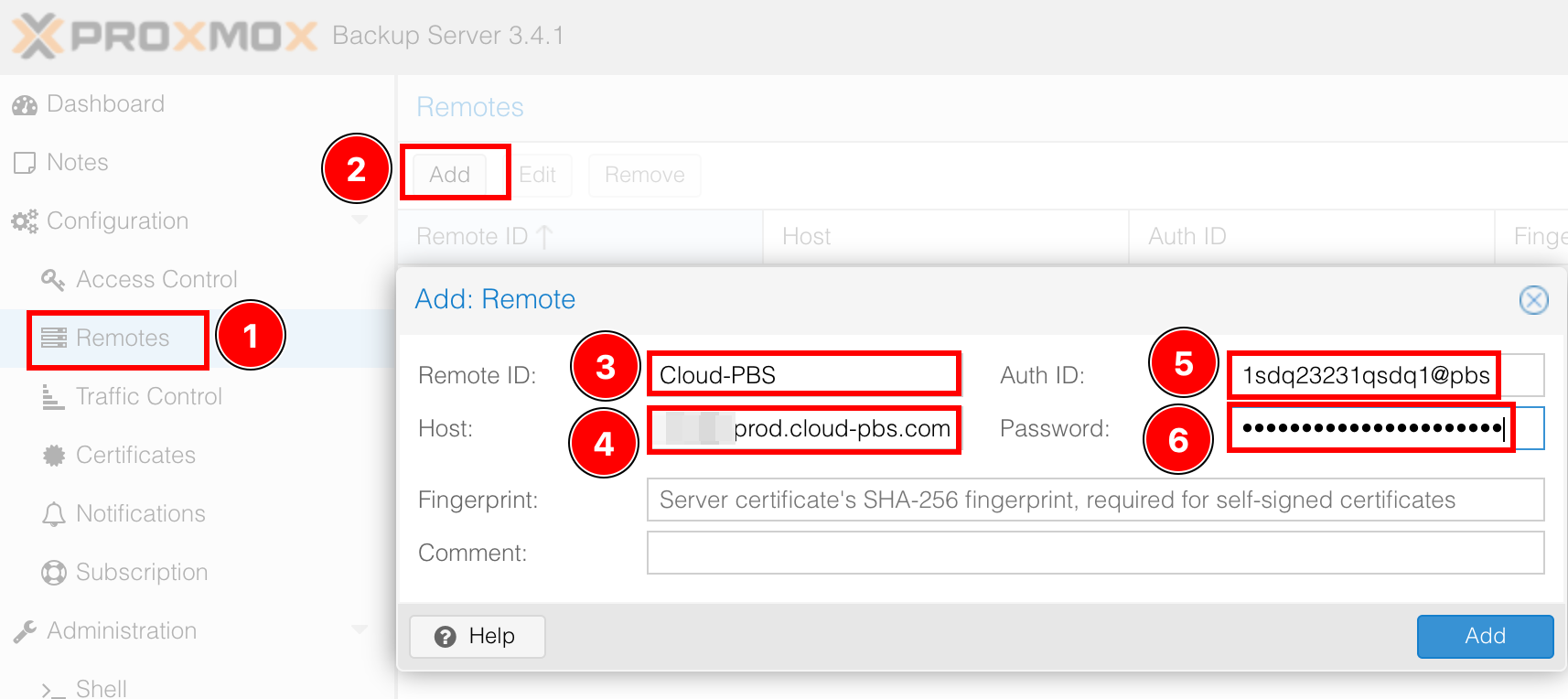
Let’s start by connect to your PBS server and configure the Remote part :
-
Select the Remotes tab.
-
Add a new remote target.
-
Enter a Remote ID, add the name you want.
-
Configure the Host from the email you received.
-
In the Auth ID field, add the username your receveid, or use a token if you enabled 2FA.
-
Finally add your password or your token’s secret.
No need to configure the fingerprint, as your cloud-pbs instance uses recognized certificates. The configured Cloud-PBS user needs at least the
Datastore.Backuppermission to push on your instance (the default username is already working).
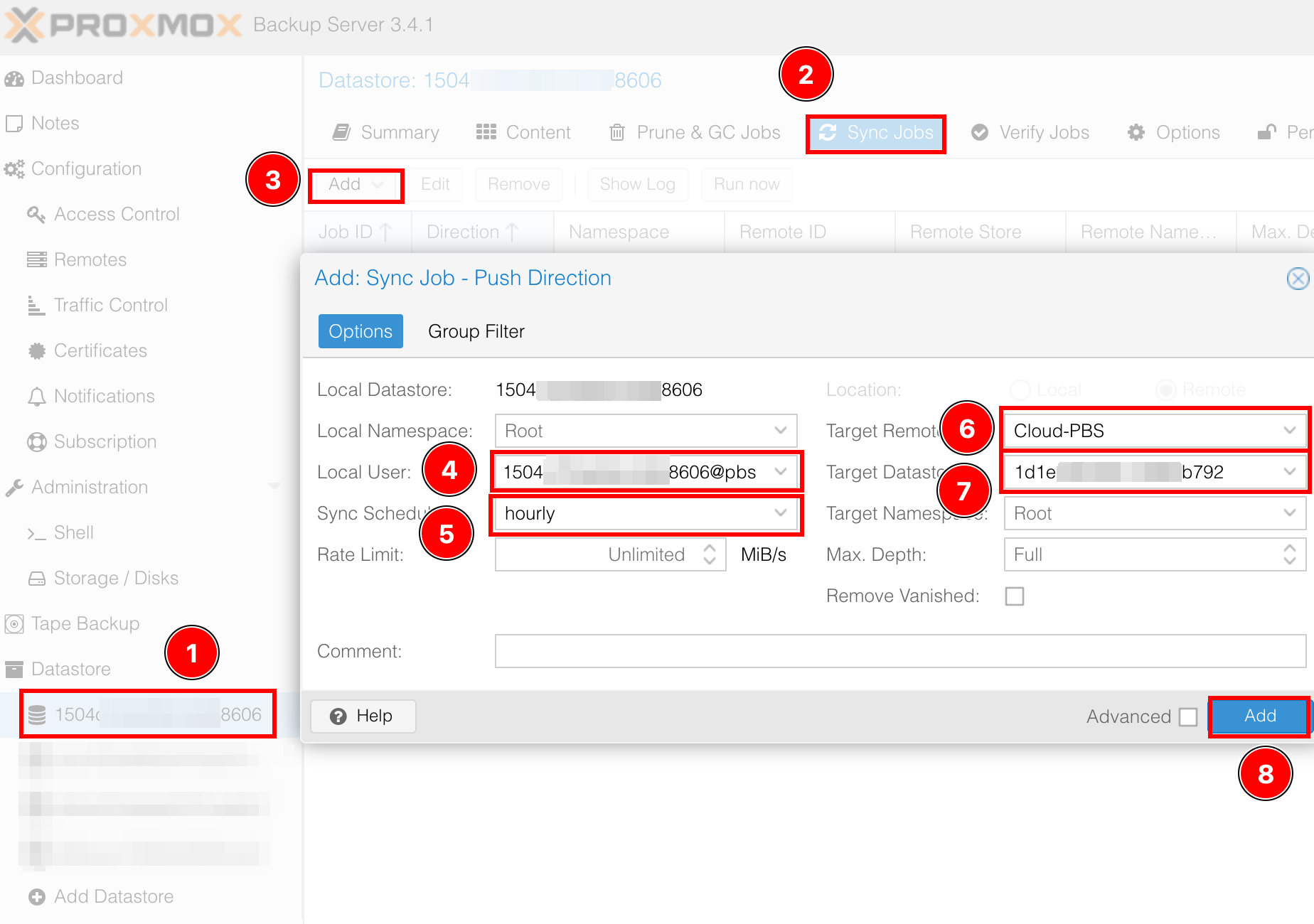
Now you just have to configure the push job like on the screen below :
-
Select your on prem datastore
-
Select the Sync Jobs tab
-
Add a new job
-
Select your Local User
-
Choose the sync frequency. Default is 1 hour
-
Select your Target Remote. This is the target configured in the previous step
-
Then select your Target Datastore.
-
Add your sync job and voila.
Once the job is configured, you can manually start it using the Run now button in the Sync Job tab